

Cloud drives (OneDrive, Dropbox, Google Drive, etc) are nothing new. They’ve been around for years now. They can provide peace of mind, ensuring important files remain intact in the event of a hard disk malfunction.
In the past, unless you were committed to a manual backup routine, it was unlikely you’d be able to retrieve any of your lost files. Cloud drives have made protecting your important files much easier. They’ve become an invaluable part of our setups.
If you use Optuma, this means your Workbooks, Scans, Scripts, Custom Tools, etc. can all be saved on a cloud drive as an extra level of protection. You won’t need a USB stick or network drive to store your backups off your main system’s hard disk.
While this is a terrific time saver, there are some important limitations to be aware of to ensure your white fluffy cloud doesn’t turn into a dark grey storm of destruction.

You may be using a Cloud Drive without knowing it
For more than a year Microsoft has been expanding the reach of OneDrive. For most new Windows installs, OneDrive will be set up to automatically backup your Library folders (Documents, Photos, etc). Optuma stores your user files (such as workbooks) in a sub-folder of Documents by default, meaning your Optuma work may be part of your OneDrive cloud without you even knowing about it.
I’ve heard a few audible sighs of relief from people over the years who encountered a hard drive malfunction thinking they had lost all their Optuma work, only to find them safe and sound in OneDrive’s cloud.
This change can also be made to your system as part of a Windows update with the initial results making it appear as though your Optuma work has been lost.
If you find after a Windows update that your copy of Optuma appears like a new installation (no saved login, no saved files like workbooks), there’s a good chance your Documents folder has been moved to OneDrive as part of that update.
We have a quick guide on how to fix this here.
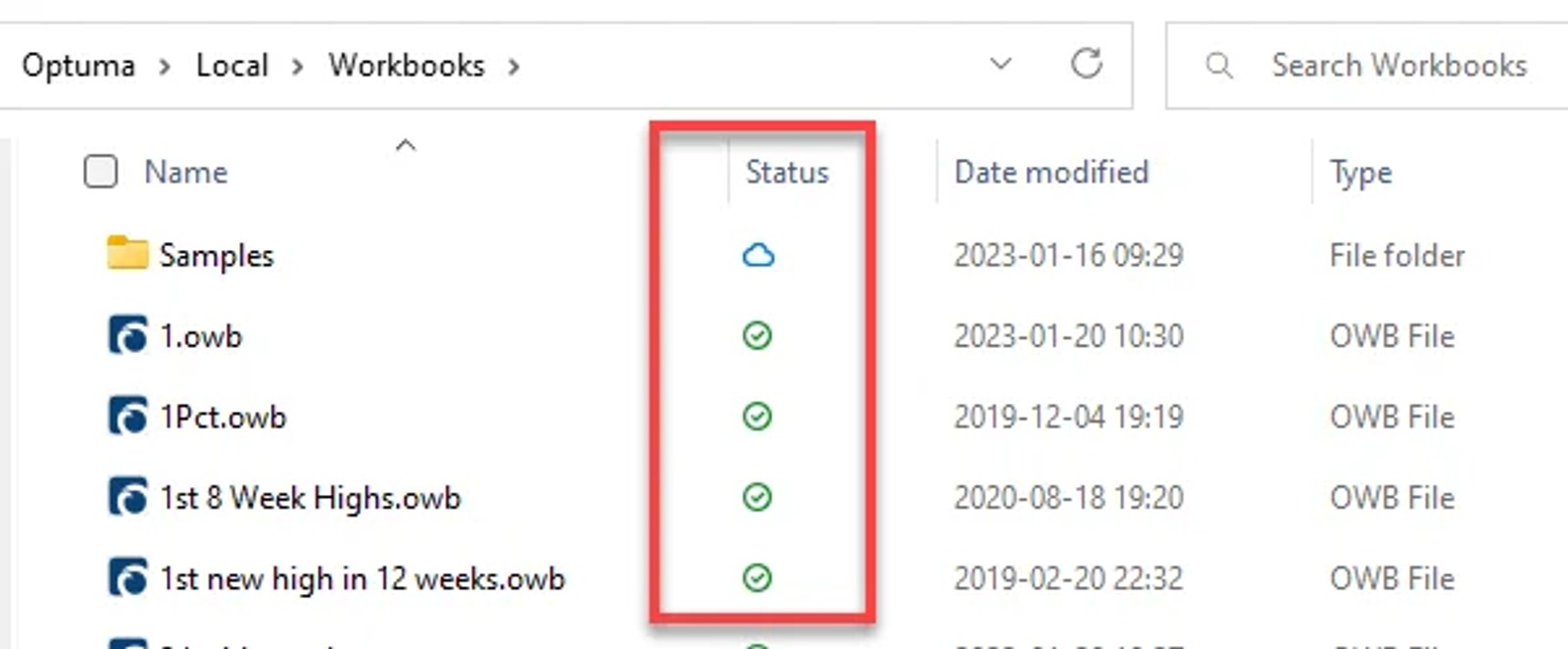
The fastest way to check if a folder is syncing to the cloud is to view it in Windows File Explorer. You’ll see the folder either has a green tick on the folder icon or has a sync status icon next to it.
The Cloud isn’t a “one size fits all” solution
Cloud folders are easy to use and for the most part their activities occur automatically in the background. For keeping your Workbooks safe, it’s a great option. An exception is the Optuma Data Folder where we store all the price data used to draw charts, scan, & run tests. I’ll explain why you never want this on your cloud drive.
Any file stored on your cloud drive needs to be uploaded to a server for storage. Depending on your connection speed, this can be a slow process to complete. Most cloud drives have a limited space allotment (5gb for OneDrive’s free version as an example), meaning it can be easy to fill.
Depending on how many data exchanges you have, your Optuma data folder will easily be 10 – 30gb with tens of thousands of files.
For this reason alone, the Optuma Data folder is not suitable to be stored on your cloud folder.

NOTE: The default location for Optuma Data files is:
C:\ProgramData\Optuma\Data\The folder can be stored on any drive or folder path, as long as it’s not a cloud drive.
There are many times when clients will report issues with Optuma (slow speeds for data updates and scans, file access errors as they are in a read-only state, etc.). A quick examination of their system tells us they moved their Data folders to OneDrive. Don’t do that!
For the most part, nothing in that folder needs to be backed up (extensive intraday historical data would be an exception to this. If you want to keep a backup, it needs to be done using a USB Stick or Network Drive, not a cloud drive).
The bane of cloud apps…duplicate files
The issues that can occur when the Optuma Data folder is moved to a cloud dive are bad enough when we’re dealing with End of Day files only. They become worse if Intraday data has been setup as well.
Files saved on a cloud drive follow the same rules as Highlander…

If a file is stored on a cloud drive it becomes locked during the sync process.
If a program (like Optuma) tries to open and modify that same file during the sync, it will be unable to complete the process, and can create a duplicate / conflict file instead.
Optuma has no reference to this new duplicate file the cloud app has made, running the risk of your intraday data cache becoming fragmented.
The sync process also tends to struggle with files that are constantly updated. Your PC spends all of its processing power trying to store files on the cloud. After a while this can cause the entire cloud application to stall. Once that happens all the benefits the cloud drive offers stop.
When left too long in this state, the number of duplicate / conflict files can create a real mess on the cloud drive (untangling Christmas lights can be an easier task than untangling a drive full of duplicates!).
All this to say, if you have your Optuma Data folder currently stored on a cloud drive, I’d highly recommend you take the weekend to work on moving this folder to an alternative location. Especially if you also use live data. The performance improvements this can achieve to your system alone are worth it.
Article: Optuma File Location Settings
By following the above recommendation and keeping your Optuma Data folder off of the cloud you can avoid common issues. You’ll benefit from a ‘set and forget’ backup process for your important Optuma user files.

Client Services & Product Director
Matt Humphreys is the Product Director at Optuma. Starting out in the Customer Service section with 1st level support, he has over 20 years of experience in assisting traders with technical issues.


